Remote support with Quick Connect
Follow the instructions for your device to start K&K Networks remote support safely.
Enter or copy this code without spaces.
Direct support
Fastest way to contact our support team:
Windows · macOS · Linux · iOS · Android · Troubleshooting
Windows
On Windows, Quick Connect downloads a small temporary remote-support program. According to NinjaOne, administrator rights are generally not required for a normal Quick Connect installation.
-
Open remote support
Open Windows remote support and click Open remote support. The Quick Connect page opens with the matching invitation code.
The Quick Connect page opens with the matching invitation code. -
Download Quick Connect
Confirm the connection by clicking Connect on the Quick Connect page. The remote-support program will download. Open your browser’s download list if the file does not appear automatically.
Start the download by selecting “Connect”. -
Run the downloaded file
Open only the file you just downloaded through the K&K Networks support page. Windows or your browser may display a security prompt. Approve it only when you arranged the remote-support session with us.
Approve the security prompt only for the remote-support session you arranged. -
Approve access
Keep Quick Connect open. When our support technician starts the session, approve the connection request on your device if prompted.
macOS
On macOS, Quick Connect downloads a small temporary remote-support program. According to NinjaOne, administrator rights are generally not required for a normal Quick Connect installation.
-
Open remote support
Open macOS remote support and click Open remote support. The Quick Connect page opens with the matching invitation code.
The Quick Connect page opens with the matching invitation code. -
Download Quick Connect
Confirm the connection by clicking Connect on the Quick Connect page. The remote-support program will download. Open your browser’s download list if the file does not appear automatically.
Start the download by selecting “Connect”. -
Run the downloaded file
Open only the file you just downloaded through the K&K Networks support page. macOS or your browser may display a security prompt. Approve it only when you arranged the remote-support session with us.
-
Grant macOS permissions
macOS may request Screen Recording and Accessibility permissions. Open System Settings and grant these permissions to NinjaOne Remote. Without Screen Recording, our support team cannot see your screen; without Accessibility, remote control is unavailable.
Allow NinjaOne Remote to use Screen Recording and Accessibility. -
Approve access
Keep Quick Connect open. When our support technician starts the session, approve the connection request on your device if prompted.
Linux
On Linux, Quick Connect downloads a small temporary remote-support program. According to NinjaOne, administrator rights are generally not required for a normal Quick Connect installation.
Linux note: These instructions and the screenshots demonstrate the process exclusively on Fedora Desktop. The process should be similar on other Linux systems, but labels, file management, and security prompts may differ.
-
Open remote support
Open Linux remote support and click Open remote support. The Quick Connect page opens with the matching invitation code.
The Quick Connect page opens on Fedora Desktop with the matching invitation code. -
Download Quick Connect
Confirm the connection by clicking Connect on the Quick Connect page. The remote-support program will download. Open your browser’s download list if the file does not appear automatically.
Start the download by selecting “Connect”. -
Run the downloaded file
Open only the file you just downloaded through the K&K Networks support page. Fedora Desktop or your browser may display a security prompt. Approve it only when you arranged the remote-support session with us.
Approve the security prompt only for the remote-support session you arranged. -
Approve access
Keep Quick Connect open. When our support technician starts the session, approve the connection request on your device if prompted.
iOS
The free NinjaOne Assist app is required on iPhone and iPad. A NinjaOne user account is not required for Quick Connect.
-
Install or open NinjaOne Assist
Open iOS remote support and tap Open App Store. If NinjaOne Assist is already installed, tap Open on its App Store page. Otherwise, install it first.
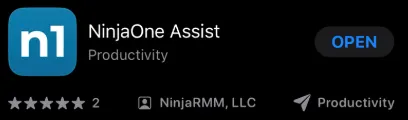
NinjaOne Assist in the Apple App Store. -
Select the European instance
If the app asks for a region or instance, choose the European or EU instance. The selector is in the upper-right corner of the sign-in screen. Stay on the sign-in screen; you do not need to sign in.
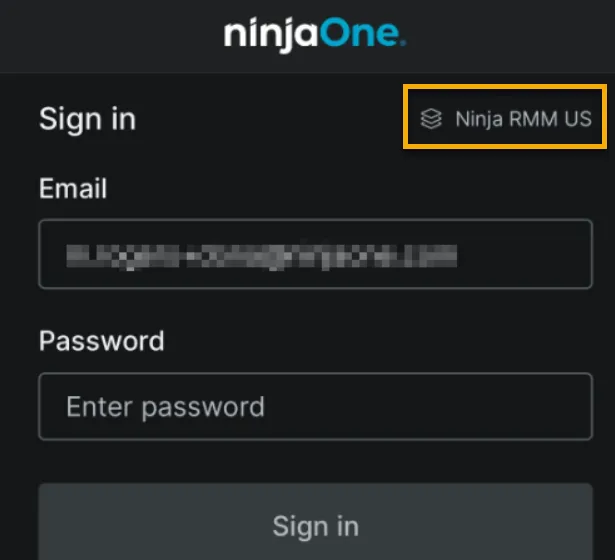
This image shows where to find the instance selector. Its exact label can vary between app versions. -
Open screen sharing
Tap Share My Screen on the sign-in screen. Some app versions call this button Remote Support Portal.
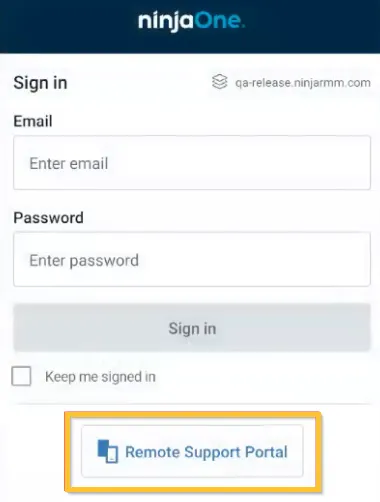
The label can vary depending on the app language and version. -
Enter the connection code
Enter the 10-digit connection code shown at the top of this page without spaces. The gaps on the website are only for readability.
-
Approve screen sharing
Keep the app open and wait for our support technician to start the connection. Then approve screen sharing or start the broadcast when your device asks you to.
iPhone and iPad allow screen viewing only.
Android
The free NinjaOne Assist app is required on Android phones and tablets. A NinjaOne user account is not required for Quick Connect.
-
Install or open NinjaOne Assist
Open Android remote support and tap Open remote support. If the app is installed, the device will try to open it directly. Otherwise, you can open Google Play.
Install or open NinjaOne Assist through Google Play. -
Select the European instance
If the app asks for a region or instance, choose the European or EU instance. The selector is in the upper-right corner of the sign-in screen. Stay on the sign-in screen; you do not need to sign in.
Select the European or EU instance before starting remote support. -
Open screen sharing
Tap Share My Screen on the sign-in screen. Some app versions call this button Remote Support Portal.
Open screen sharing through “Share My Screen” or “Remote Support Portal”. -
Enter the connection code
Enter the 10-digit connection code shown at the top of this page without spaces. The gaps on the website are only for readability.
-
Approve screen sharing
Keep the app open and wait for our support technician to start the connection. Then approve screen sharing and any requested permissions.
Android control capabilities depend on the device, its management mode, and the permissions you approve.
Troubleshooting
The connection code is rejected
Check that you entered all ten digits without spaces. In NinjaOne Assist, also select the European or EU instance. According to NinjaOne, choosing the wrong instance can cause the app to report that the code is invalid.
The app does not open
Open NinjaOne Assist manually or use the App Store or Google Play button on the home page. Then return to the app and select Share My Screen or Remote Support Portal.
Our support team cannot see the device yet
Check your internet connection, keep the app or Quick Connect open, and approve any pending sharing prompts. Then tell our support team that the device is ready.
Product information and screenshot sources: NinjaOne Assist documentation, Quick Connect documentation, and macOS permissions.
Direct support
Fastest way to contact our support team: